Join photos in the order you picked, at full quality.
Pixjoin stitches photos and screenshots into one image, vertically, side by side or in a grid. It keeps the original resolution, keeps your order, and never crops or blends anything. Pick, join, save.
Get it on Google Play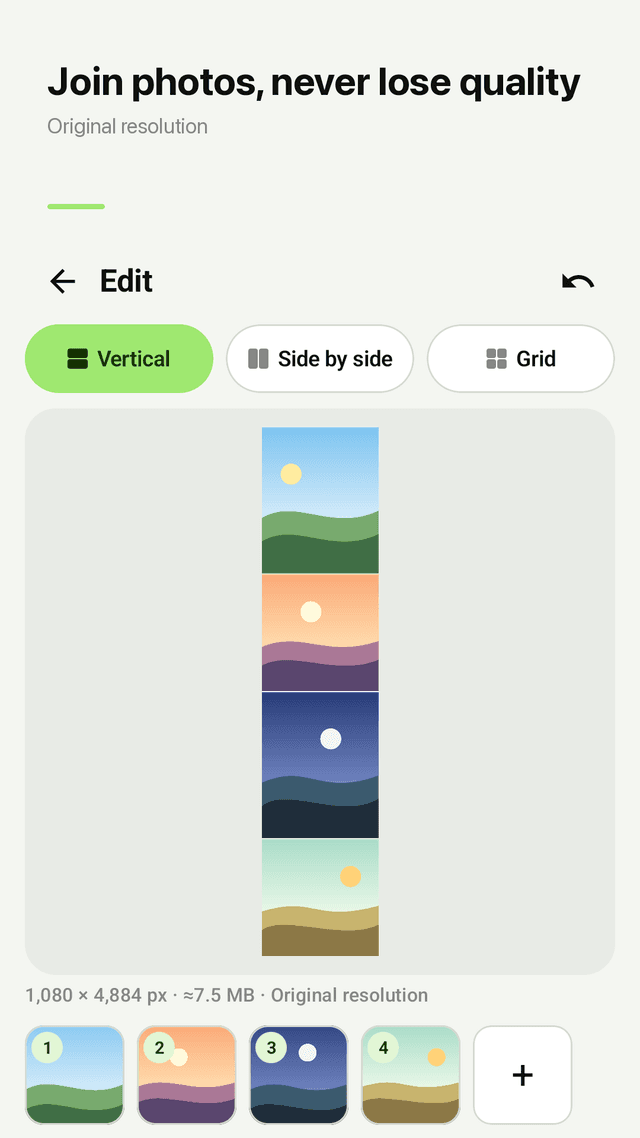
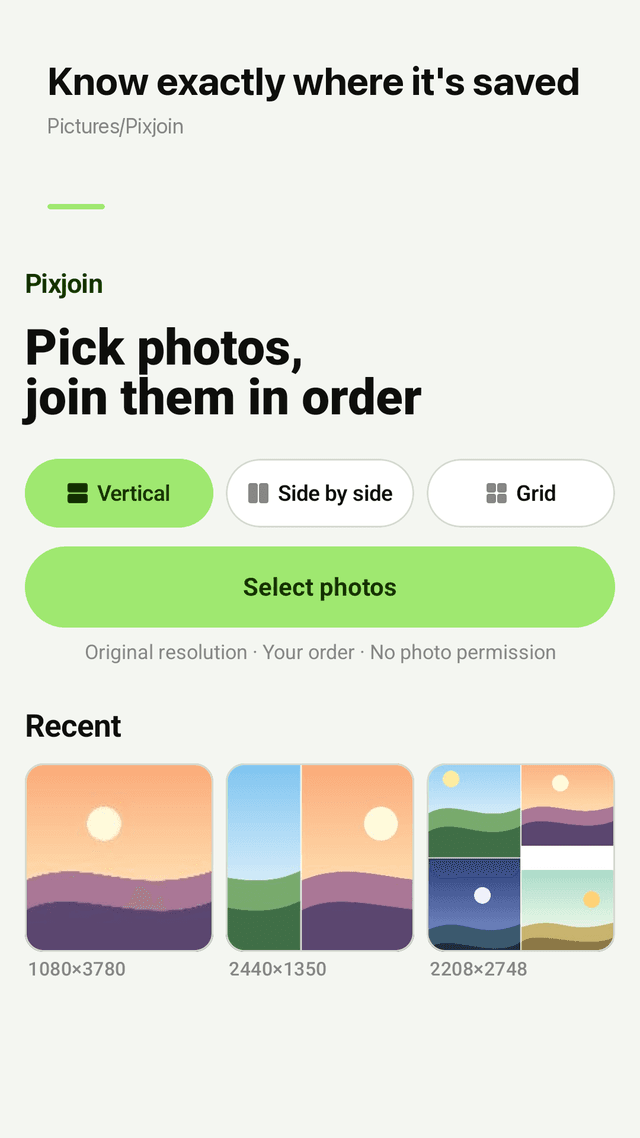
Vertical, side by side or grid
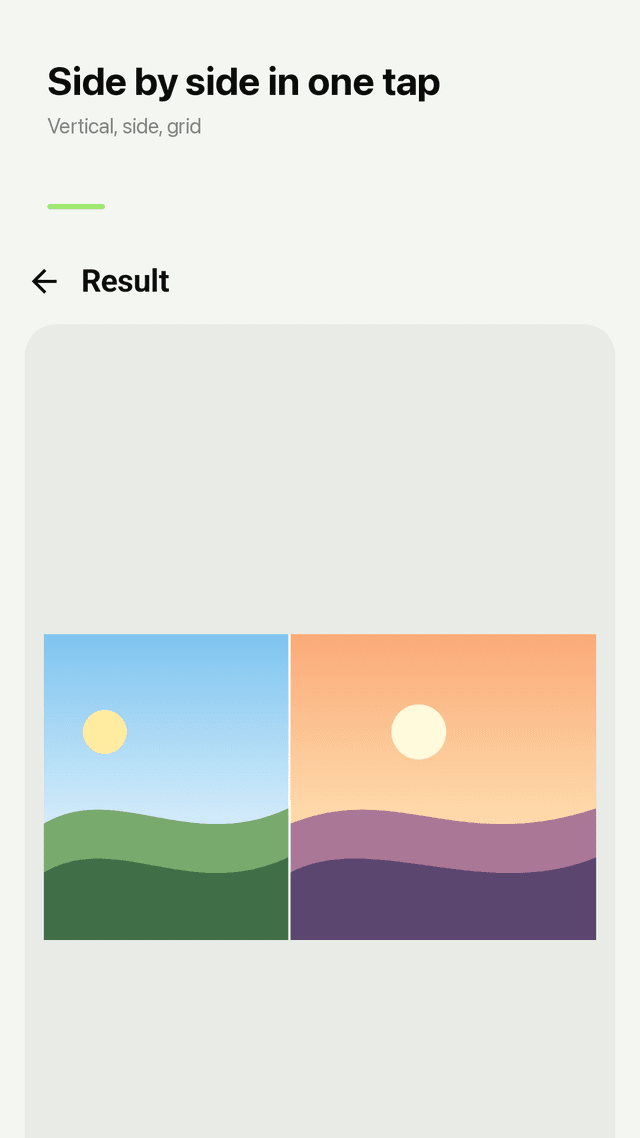
Stack photos into one long image, put before/after shots next to each other, or lay them out in a clean grid.
Original resolution by default
No hidden low-quality setting. See the final size in pixels and MB before you save.
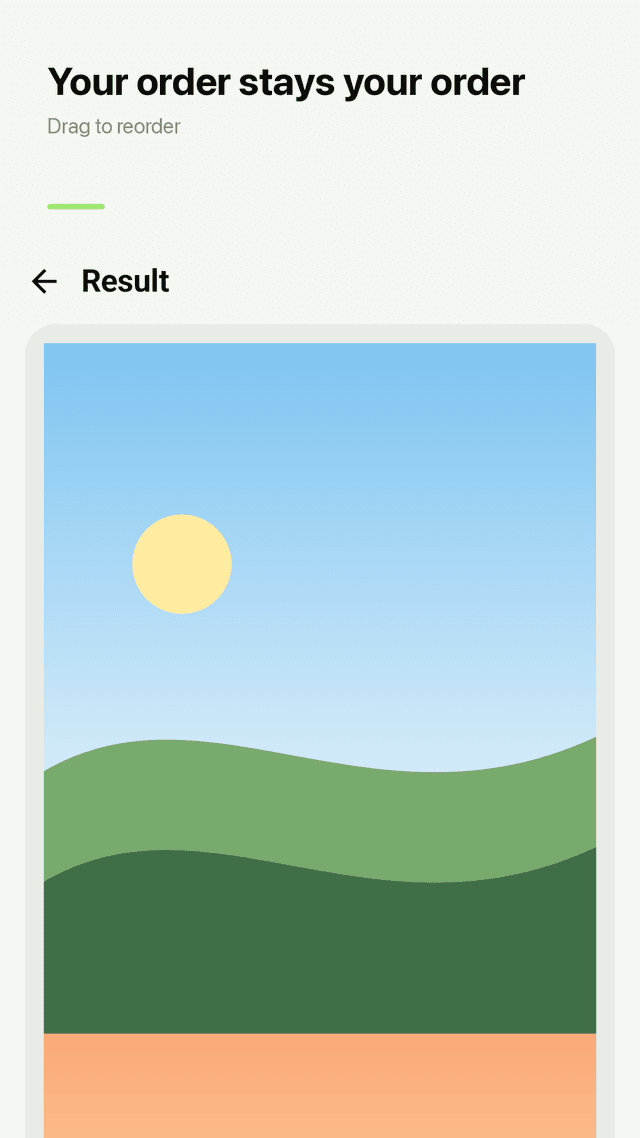
Your order stays your order
Photos come in exactly as you selected them. Long-press and drag to reorder, reverse the order in one tap, and undo any change.
Long screenshots
Join chat threads, receipts, recipes or articles into one tall image you can send in a single message.
PNG or JPG
PNG keeps transparent areas clear. Pick JPG when you want a smaller file.
Photos of different sizes
Match width, match height or keep original sizes. Add a gap and a border with white, black or clear fill.
Know where it's saved
Every result goes to Pictures/Pixjoin and is shown right after saving, ready to share or open.
Private by design
Select up to 50 images with the Android photo picker, no photo permission. All processing happens on your phone and nothing is uploaded.
FAQ
- Why does the quality drop when I combine photos in other apps?
- Many apps scale images down by default. Pixjoin saves at original resolution by default and shows the final pixel size and file size before you save.
- Can I combine them vertically in chronological order?
- Yes. Images are added in the order you pick them. If one is out of place, long-press and drag it, or reverse the whole order in one tap.
- I wanted to combine 2 images side by side. Can I do just that?
- Yes. Pick the two photos, choose Side by side and tap Join & save.
- Where are the images created stored?
- In Pictures/Pixjoin on your phone. Pixjoin shows the saved image right away, and recent results appear on the home screen.
- Can I keep the transparent background?
- Yes. Save as PNG and choose a clear fill for gaps and borders.
- My images are different sizes and don't fit each other. What can I do?
- Choose match width (for vertical) or match height (for side by side), or keep the original sizes.
- Does it auto-detect where screenshots overlap?
- No. Pixjoin joins whole images edge to edge in your order. It does not crop or detect overlapping parts, so nothing gets cut off by mistake.
- Are my photos uploaded?
- No. Everything is processed on your device. There is no account and no upload.